Setting up Atom.io as my Markdown Editor
I recently had to admit to myself that too many options are not good for the way I work. Once I have the chance to fiddle, I will do so and eventually not get much done.
This happened when I realized that, even though I very much enjoy Ulysses.app, it ultimately doesn't work well for me simply for the reason that I tend to tinker with themes and fonts and eventually not get much done. Hence I switched back to iA WriterPro, which allows to literally no customization.
Even though I was happy with it, I had the issue coming up that I needed to have a text-editor available on the computer at work. I have my own user account on the machine but I have no intention to sign in with my iCloud credentials into a machine which is also used by other users only to have access to Writer Pro, and with it my files[1].
I had to come up with a solution.
This led yet another time to a search for a nice editor that suits my needs. I (re-)tried a few which I knew, yet all either disappointed or simply where not what I was looking for. Since I at some point in the past have tried to set up Sublime for writing, it dawned me that I could look into how Atom.io would hold up.
I have been using Atom.io for a couple of weeks to edit the code of this blog and it feels more user-friendly to me. Since you read this, you can guess that it didn’t took long before it was clear that I had a winner. It even swayed me over to use it a my go-to-editor on all my machines.
I was sure that somewhere someone must have done the same and eventually found a very useful introduction into how to Atom.io for Markdown Editing[2] on a Microsoft blog. One of the interesting things from the post:
If you’re working in a folder that contains a lot of Markdown files, don’t even try using the tree view. It’s 100x easier to use
ctrl-t[3] and then start typing the file name you want to open. This will search through the directory structure for files that match the text you’ve entered, and you can then click the one you want.
Perfect, just what I like.
In the aforementioned article are already a few nice packages listed for turning Atom.io into a really nice Markdown editor. But there are few more and for my purposes and needs I installed the following packages:
Markdown WriterReally excellent package and the heart of this setup. It does everything that I need. The only issue I had, was that Italics used the underscore and not the * asterisk which I prefer. Luckily this was easily adjusted in the Markdown-Writer Package ‘markdown-writer -> style-text.coffee line 8’ change the underscore to asteriks (even though I am on the brink of changing my mind on that matter).
[code lang=text] italic: before: “*”, after: “*” [/code]
ZenThis is how I get the focused and clean editor that I am looking for. The options allow for some and customization which are helpful, such as activating showing wordcount (follows) and showing or hiding TABS.WordcountFor word and character count, obviously.MarkedWell, preview with Marked. Of course this is Mac only.Markdown Table FormatterThis ones does the obvious and nicely formats Markdown tables. I surely don’t need this a lot, but it will come in handy from to time. This feature is already included in Markdown Writer but this script seems to work better for my liking.
Automation
Even though I enjoy all kinds of automation, I suck at actually doing the automation. Scripts are great when, well, you know how to script I guess. Something that I still have to learn. One thing that I generally like to improve is my file naming. Of course I have a file-naming-system, I’m not an animal, but I’m not always good at actually sticking to it. The Markdown Writer package though takes the pain away from me. After setting up folders in the Markdown Writer package for Drafts and Posts everything just falls naturally into place. Drafts are, as one would guess, automatically stored in the Drafts folder and once I am ready to publish (or already have done so) I invoke the Publish Draft command via CMD+SHIFT+P and the draft gets moved into the Post folder and renamed according to what I have specified. Just, what I always wanted. Bliss!
Themes
The amount of available themes both for the editor and the syntax is staggering and there surely is something for everyone. I have been trying a few, if not too many, only to realize that I prefer the included ones the most. The classic Solarized (both dark and light) and both One Dark and One Light are rather nice on the eye. One that I found to be rather well working for me is the Sepia Syntax theme, though I mostly use the Solarized themes.
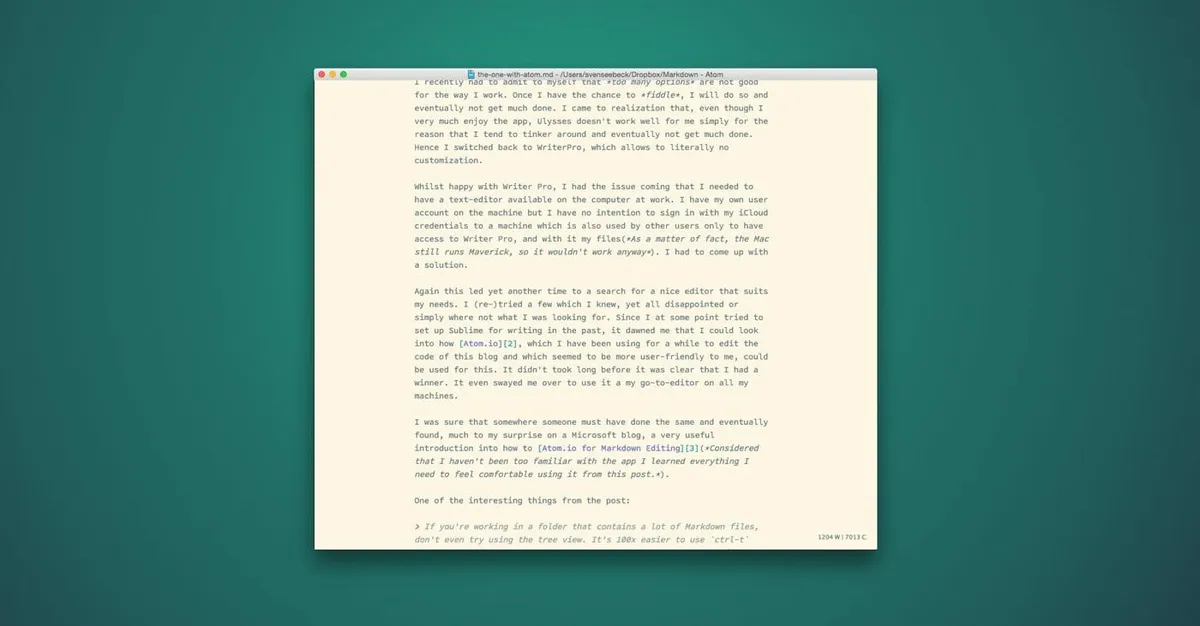
Another very interesting one is the Pen, Paper, Coffee syntax theme which is specifically designed for text. It even supports Critic Markup, a markup language that I though, not take much advantage of.
Resume
Once pieces fell into it’s places and I started to get more familiar with the app and new workflows it has become very quickly a pleasant and very powerful app to work with. One that I look forward to spend a lot more time with. Sure, figuring all this out, took some time, but in the process I also wrote this post and doing so learned a lot of new things.
I sincerely hope that now, that I finally puzzled together the Markdown editor that I always wanted, that is not only Open Source but also Cross Platform, I will finally settle and stop this honestly very annoying switching.
In the meanwhile I have set the editor up with these packages on a few machines and it takes only a few minutes and it’s done. The only slightly annoying thing that I have encountered is that Finder Services and with it Brett’s Markdown Services don’t seem to work all the time. Also in an interesting side-note Folding Text is currently developed for Atom.io as well which is interesting as well. I haven’t looked into that though yet. And yes, the font that I am using is of course Office Code Pro, which makes of course for an extra nice experience.
[1]: As a matter of fact, the Mac still runs Maverick, so it wouldn’t work anyway
[2]: Considered that I haven’t been too familiar with the app I learned everything I need to feel comfortable using it from this post.
[3]: In fact it is CMD+t on the Mac